
Use Log a Call when you need a fast, manual entry right after hanging up. Use a connected softphone, Open CTI, or Salesforce Voice when you want the system to capture the call for you. Manual logging wins on speed and coaching notes; automated capture wins on completeness and accuracy, since it never forgets to hit save. Either way, the record lands as a Task with TaskSubtype = Call, visible in the Activity History related list and the Activities component on the record page.
- Choose manual when you want control over notes, disposition, and next steps in the moment.
- Choose automatic when volume is high and you can't afford gaps in the timeline.
- Choose both when managers need coaching detail and leadership needs complete numbers.
Key Takeaways
Consistent call logging in Salesforce comes down to picking the right method for each situation and making sure WhoId and WhatId are always filled.
| Point | Details |
|---|---|
| Use Log a Call for control | Manual entries give you accurate notes and dispositions right after the conversation. |
| Automate for volume | Softphones, Open CTI, or Salesforce Voice capture calls without relying on reps to remember. |
| Fill WhoId and WhatId always | Missing these fields is the top reason calls disappear from Activity History. |
| Report on Tasks and VoiceCall together | Joined reports show manually logged and telephony-captured calls in one view. |
| Consider Dialed Sales for speed | Dialed Sales logs calls quickly and auto-surfaces follow-ups without Salesforce configuration. |
Where to learn more about Salesforce call logging setup
- Salesforce Help covers the Log a Call action and Task behavior in detail.
- Developer documentation explains the Log Call publisher for admins building custom actions.
- Trailhead offers hands-on modules for activity and telephony setup.
Table of Contents
- How Do You Log a Call in Salesforce Manually?
- How Does Automatic Call Logging Work in Salesforce?
- How Do You Add Log a Call to a Page Layout?
- Where Do You Find and Report on Call History?
- How Do You Customize Call Fields and Outcomes?
- Why Aren't My Call Logs Showing Up?
- What Are the Best Practices for Consistent Call Logging?
- Manual vs Automatic Call Logging: What Do You Actually Gain or Lose?
- A Faster Way to Log Calls Without Wrestling Salesforce Setup
- Frequently Asked Questions
- Sources
How Do You Log a Call in Salesforce Manually?
The Log a Call quick action is the fastest path to a clean record, and it works almost identically whether you're a manager reviewing pipeline or a rep between dials.
In Lightning:
- Open the Contact, Lead, or Opportunity record.
- Find the Activity composer or Activity tab near the top of the page.
- Click Log a Call.
- Fill in Subject, Call Type, Result (Call Disposition), Comments, and Related To.
- Click Save.
In Classic, the same action sits inside the Activity History related list, usually as a button labeled "Log a Call" rather than a composer tile. The fields are the same; the layout is just older.
For consistent reporting, fill these every time: WhoId (the contact or lead), WhatId (the account or opportunity), Subject, Call Result, and Next Steps. Skipping WhoId or WhatId is the single biggest reason calls vanish from a contact's history later.
Pro Tip: Build a five-word subject template like "Discovery call, budget confirmed" instead of typing a fresh sentence each time. It cuts logging time in half and makes list views scannable at a glance.
Every Log a Call action creates a completed Task tied to whatever record you were viewing, which is why it shows up immediately in Past Activities.
How Does Automatic Call Logging Work in Salesforce?
Three setups handle this without a rep touching a keyboard. A softphone connected through Open CTI logs the call the moment it ends, usually writing a Task record with timestamps and duration already filled in. Salesforce Voice (Service Cloud Voice) goes further, generating its own VoiceCall object with call recordings and transcripts attached when enabled. Einstein Activity Capture and similar conversation intelligence tools sync email and calendar activity, and some add AI-generated summaries on top of the raw call data.
The trade-off: automated logs often contain more metadata (call duration, phone number, recording links) but less human judgment. A logged Call and a Voice Call are technically different objects, a Task versus a VoiceCall record, so your reporting has to account for both.
- Softphone/CTI: usually writes to Task.
- Salesforce Voice: writes to the VoiceCall object.
- Einstein Activity Capture: syncs activity, sometimes without a visible Task at all.
Pro Tip: If automated calls aren't showing up on a contact, check the matching fields first. A missing WhoId or WhatId is far more common than a broken connector.
How Do You Add Log a Call to a Page Layout?
If reps can't see the button, it's a layout issue, not a permissions issue nine times out of ten. Go to Setup → Object Manager → [Object] → Buttons, Links, and Actions, or open the record page in Lightning App Builder and add Log a Call to the Activities component or the publisher action list. Repeat this for Leads, Contacts, Accounts, Opportunities, and Cases separately since layouts don't inherit across objects.
- Confirm the action is visible on the page layout, not just assigned.
- Check the compact layout isn't hiding the activity panel.
- Verify the Activities component itself is placed on the Lightning page.
Where Do You Find and Report on Call History?
Call history lives in three places depending on how the call was logged: the Activity component on the record itself, the Activity History related list for older Classic-style views, and the VoiceCall object for anything captured through Salesforce Voice or a telephony connector. Tasks filtered to TaskSubtype = Call cover everything logged manually or through most softphones.
Building a usable report takes five steps:
- Click New Report.
- Choose the Activities report type, or Tasks filtered to
TaskSubtype = Call(use the VoiceCall report type for telephony-captured calls). - Add fields: Call Type, Call Result, Duration, Owner, Related To.
- Apply filters for date range and owner or team.
- Save and add to a dashboard if you want it refreshing automatically.
Useful metrics to track: call count by rep, connected rate, average call duration, and follow-up tasks created per call.
- Rep-level call counts flag coaching gaps fast.
- Connected rate versus dial count tells you if targeting is the problem, not effort.
Pro Tip: Run a joined report combining Task and VoiceCall data so manually logged calls and telephony-captured calls show up side by side instead of in two separate views nobody checks.
How Do You Customize Call Fields and Outcomes?
Most teams eventually need to edit the Call Result / Call Disposition picklist, add custom Task fields, or create a dedicated Task record type just for calls. Mapping CTI fields to Salesforce fields is the other common project, especially when a softphone vendor uses different field names than your org does.
- Edit picklist values so every rep chooses from the same short list, not free text.
- Add validation rules that require Call Result before save, but sparingly, since too many required fields kill adoption.
- Build automation that creates a follow-up Task automatically when a disposition like "Callback requested" is selected.
- Test every change in a sandbox first. Repointing a picklist in production can silently break historical reports.
Pro Tip: Before renaming or removing a picklist value, check how many existing records use it. Deleting it can orphan months of historical reporting.
Why Aren't My Call Logs Showing Up?
Missing calls almost always trace back to one of three things: permissions, matching, or connector health.
- Check that the user's profile or permission set grants access to the Task object and Field-Level Security on call fields.
- Confirm CTI or Apex permission sets are assigned if a connector is involved.
- Service Cloud Voice and Einstein Conversation Insights carry their own edition and licensing requirements, so confirm entitlement before troubleshooting further.
- Verify matching rules on WhoId and WhatId, since a call with no related contact simply won't appear where you're looking.
- Check Salesforce Trust for connector or platform incidents before assuming it's a configuration problem.
What Are the Best Practices for Consistent Call Logging?
Speed kills accuracy if you let it. The fix is a short list of non-negotiables, not a long policy document nobody reads.
- Log the call within a few minutes of hanging up, before the details blur into the next one.
- Always set a Call Result. An empty disposition field is a dead end for reporting.
- Attach the call to an Opportunity whenever one exists, not just the Contact.
- Standardize subjects across the team so list views are actually scannable.
- Use recordings and transcripts for selective coaching moments rather than reviewing every call.
Pro Tip: Pull three logged calls per rep each week for a two-minute review instead of trying to audit everything. Consistent spot checks catch bad habits faster than exhaustive audits, which nobody has time for anyway.
Reps who standardize their call outcome tracking tend to spot patterns in what's working weeks before it shows up in pipeline numbers.
Manual vs Automatic Call Logging: What Do You Actually Gain or Lose?
Automated capture solves a specific problem: reps forgetting to log calls at all. It addresses capture, enrichment, syncing, and matching without asking a rep to type a single word, which is why high-volume outbound teams lean on it heavily.
The trade-offs run both directions:
- Automated capture increases completeness and cuts admin time, but requires upfront field mapping, consent handling for recordings, and a pilot period before full rollout.
- Manual capture gives you control over note quality and context immediately, but suffers the moment reps get busy or tired, since nothing forces the entry to happen.
- Blended approaches, automation for volume plus manual notes for high-value calls, tend to outperform either extreme alone.
Before flipping the switch org-wide, map your fields first, pilot with a small team, confirm your recording and consent policies are documented, and monitor match rates between calls and existing Contact or Lead records for at least a few weeks.
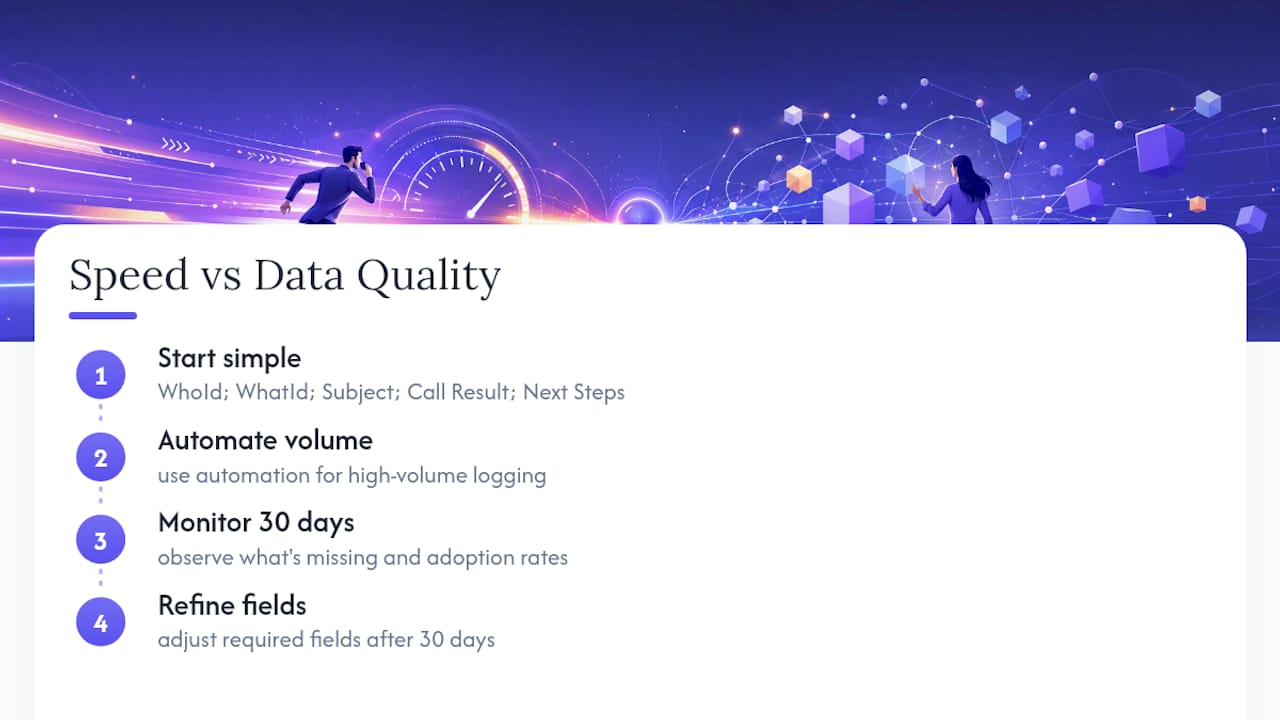
A sales ops perspective on speed versus data quality
Start with a handful of mandatory fields plus automation for volume, then refine after 30 days once you can see what's actually missing. Chasing perfect fields on day one just kills adoption before the data ever gets good.
A Faster Way to Log Calls Without Wrestling Salesforce Setup
If Salesforce's layout menus and picklist configuration feel like more overhead than your team wants for something as basic as logging a call, Dialedsales was built as the lighter alternative. It logs a call in about 10 seconds with customer name, outcome, and notes, then automatically surfaces the follow-up the moment it's due instead of relying on a rep to remember.
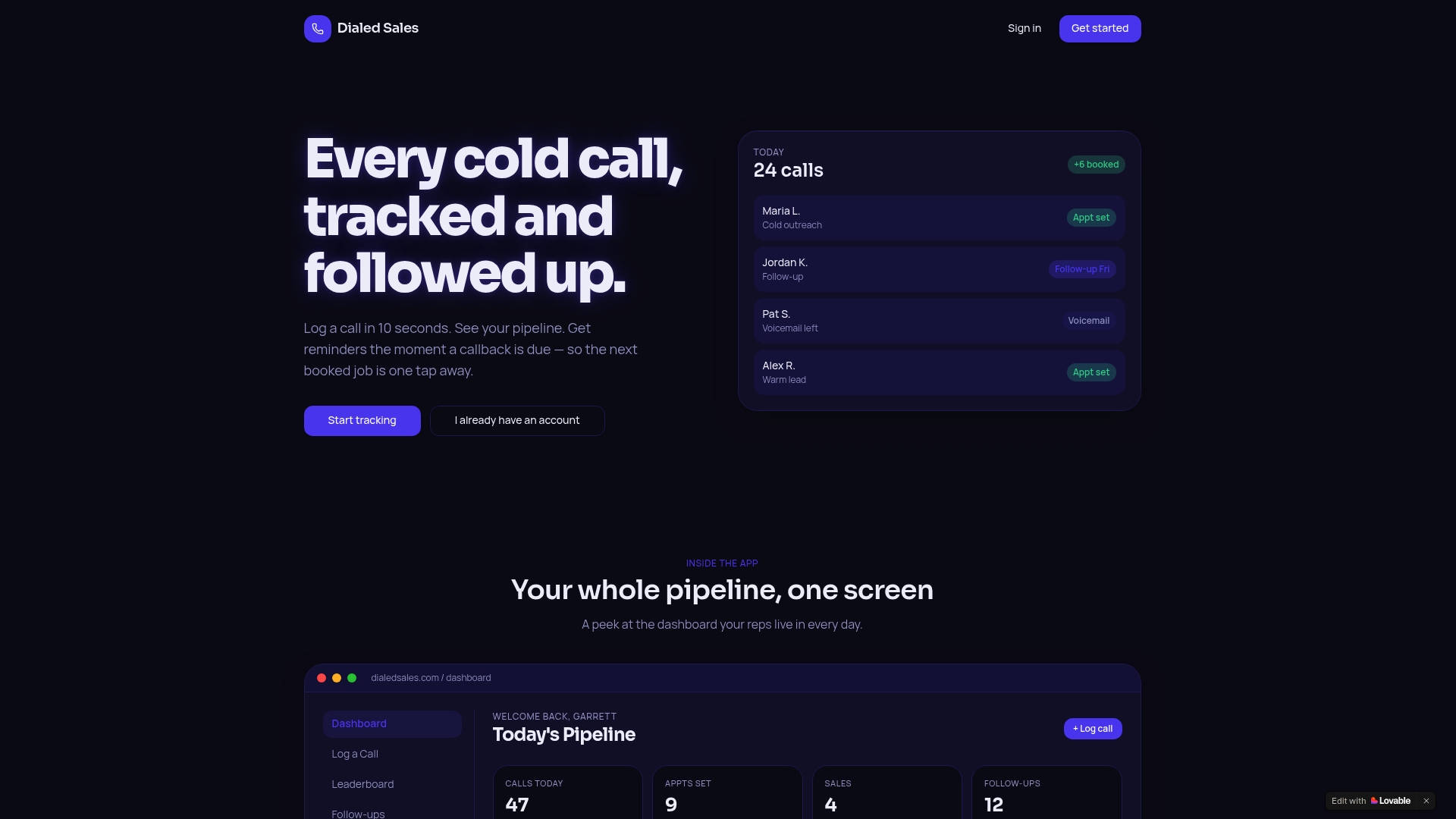
- Log a call in roughly 10 seconds, no page layout configuration required.
- Automatic follow-up reminders appear on your dashboard exactly when they're due.
- A live activity dashboard shows managers rep-by-rep outcomes without building a custom report.
- Works across iPhone, Android, and desktop, so reps aren't stuck at a laptop between dials.
For outbound teams in solar, insurance, HVAC, or real estate who just need calls tracked and callbacks remembered, start a trial at Dialed Sales and see your first day of logged calls on the dashboard within minutes.
Frequently Asked Questions
What object does a logged call create in Salesforce?
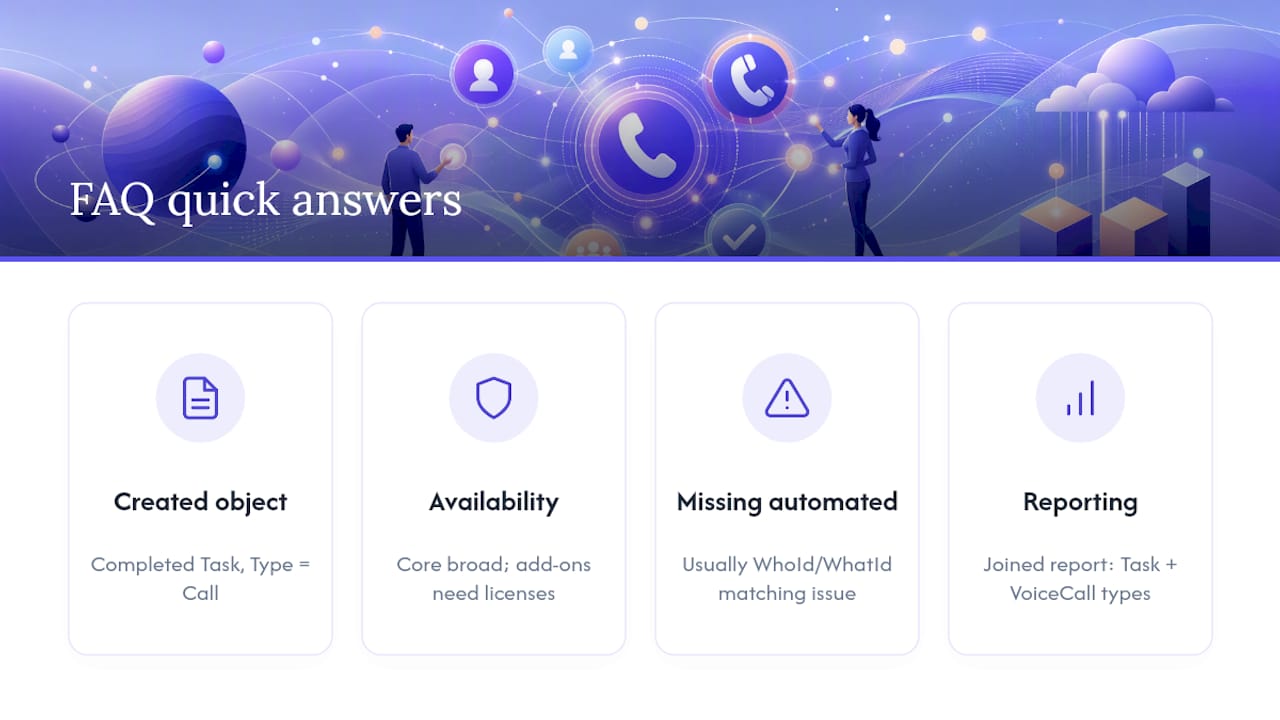
A completed Task record with TaskSubtype set to Call, visible in Activity History and the Activities component on the related record.
Is Log a Call available in every Salesforce edition? The basic action is broadly available, but features like Service Cloud Voice and Einstein Conversation Insights carry their own edition and licensing requirements you'll need to confirm before setup.
Why don't my automated calls show up under a Contact? Almost always a matching problem. Check that WhoId and WhatId are populating correctly, then confirm the connector itself is healthy on Salesforce Trust.
Can I see manually logged calls and telephony calls in one report?
Yes. Build a joined report combining the Task report type (filtered to TaskSubtype = Call) with the VoiceCall report type to see both in a single view.
Do I need Field-Level Security changes for call fields? Check Field-Level Security on any custom call fields and Task object visibility on the user's profile or permission set before assuming a connector is broken.
Sources
- Salesforce Help | Article
- Call - Definition & Examples | Salesforce Dictionary
- Developer documentation — Log Call publisher
- Trust